
Running Kubernetes in a homelab is fun until everything starts living in the terminal.
The CLI is powerful. Tools like kubectl give you full control over your cluster. But after a while, constantly running commands just to inspect workloads or check logs can slow things down.
I wanted something closer to what many teams use in production. A visual interface where I could see workloads, inspect containers, and manage resources quickly.
That led me to Portainer.
In this article, I walk through how I installed Portainer on my Kubernetes homelab running on Proxmox Server Solutions, the issues I ran into along the way, and how I fixed them.
##My Homelab Setup
My infrastructure currently looks like this:
Proxmox host
    └── Virtual machines
        └── Kubernetes cluster (k3s)
                └── Container workloads
The Kubernetes cluster runs inside VMs managed by Proxmox, and most of my applications run as containers inside the cluster.
Portainer runs inside Kubernetes as well, which allows it to interact directly with the Kubernetes API and manage cluster resources.
##Why I Wanted Portainer
Even though the CLI works perfectly, I wanted a management layer that offers:
- A visual view of workloads
- Faster troubleshooting
- Easier inspection of pods and logs
- Cluster-wide visibility
- A user interface similar to production environments
The goal was not to replace the CLI. It was to complement it.
In real infrastructure environments, engineers rarely rely on commands alone. Tools that visualize cluster state make day-to-day operations much easier.
##Step 1. Install Helm (If Not Already Installed)
Helm is a package manager for Kubernetes (similar to NPM for Node.js and Cargo for Rust). Portainer provides an official Helm chart, so Helm is required for installation.
To check if Helm is installed:
helm versionIf not installed, install Helm based on your operating system.
##Step 2. Add the Portainer Helm Repository
To do this, I ran the command below:
helm repo add portainer https://portainer.github.io/k8s/
helm repo update
This makes the Portainer chart available locally.
##Step 3. First Installation Attempt (And the Error I Hit)
When I first tried installing Portainer, I got this error:
cluster reachability check failed:
kubernetes cluster unreachable:
Get "http://localhost:8080/version":
connect: connection refused
It means Helm could not find my Kubernetes cluster configuration. It defaulted to trying localhost:8080, which does not exist.
This happened because my cluster runs k3s, which stores its kubeconfig in:
/etc/rancher/k3s/k3s.yamlkubectl was automatically using this file, but Helm was not. So Helm had no cluster credentials.
##Step 4. Fixing the Cluster Reachability Error
I explicitly exported the kubeconfig:
export KUBECONFIG=/etc/rancher/k3s/k3s.yamlAfter that, Helm could communicate with Kubernetes. I verified by running the command below
helm listTo make this changes permanent, I ran:
echo 'export KUBECONFIG=/etc/rancher/k3s/k3s.yaml' >> ~/.bashrc
source ~/.bashrc##Step 5. Install Portainer in Kubernetes
Once Helm could talk to the cluster, installation was straightforward. I did so by running the command below:
helm install portainer portainer/portainer \
  --namespace portainer \
  --create-namespace \
  --set service.type=NodePort
This deploys:
- Portainer server
- Kubernetes integration components
- A service for web access
##Step 6. Verify Deployment
Check pods:
kubectl get pods -n portainerI waited until the status showed Running:

##Step 7. Access the Portainer UI
To access the UI, first, I need to find the service on which Portainer is exposed:
kubectl get svc -n portainerThen looked for the NodePort value.

Access in browser:
https://<node-ip>:<nodeport>##Step 8. Second Issue I Encountered (Security Timeout)
When I opened the UI, I saw:
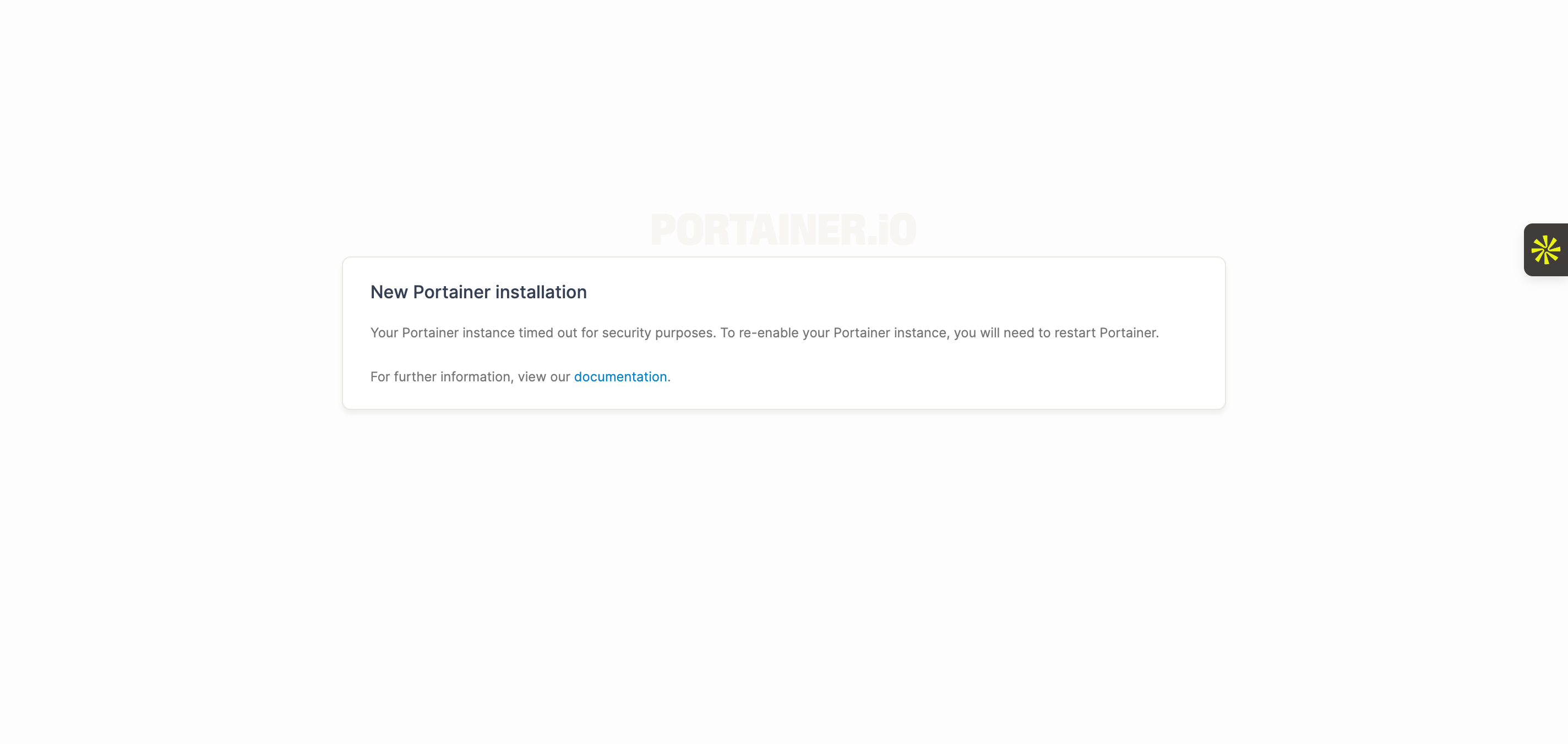
This happens if you do not create the admin account quickly after the first launch, which I didn’t in my case. It’s a security measure with Portainer. It locks itself after some time.
##Step 9. Fixing the Timeout
To fix it, I restarted the Portainer deployment:
kubectl rollout restart deployment portainer -n portainerThen waited for the pod to become Running, then refreshed the browser.
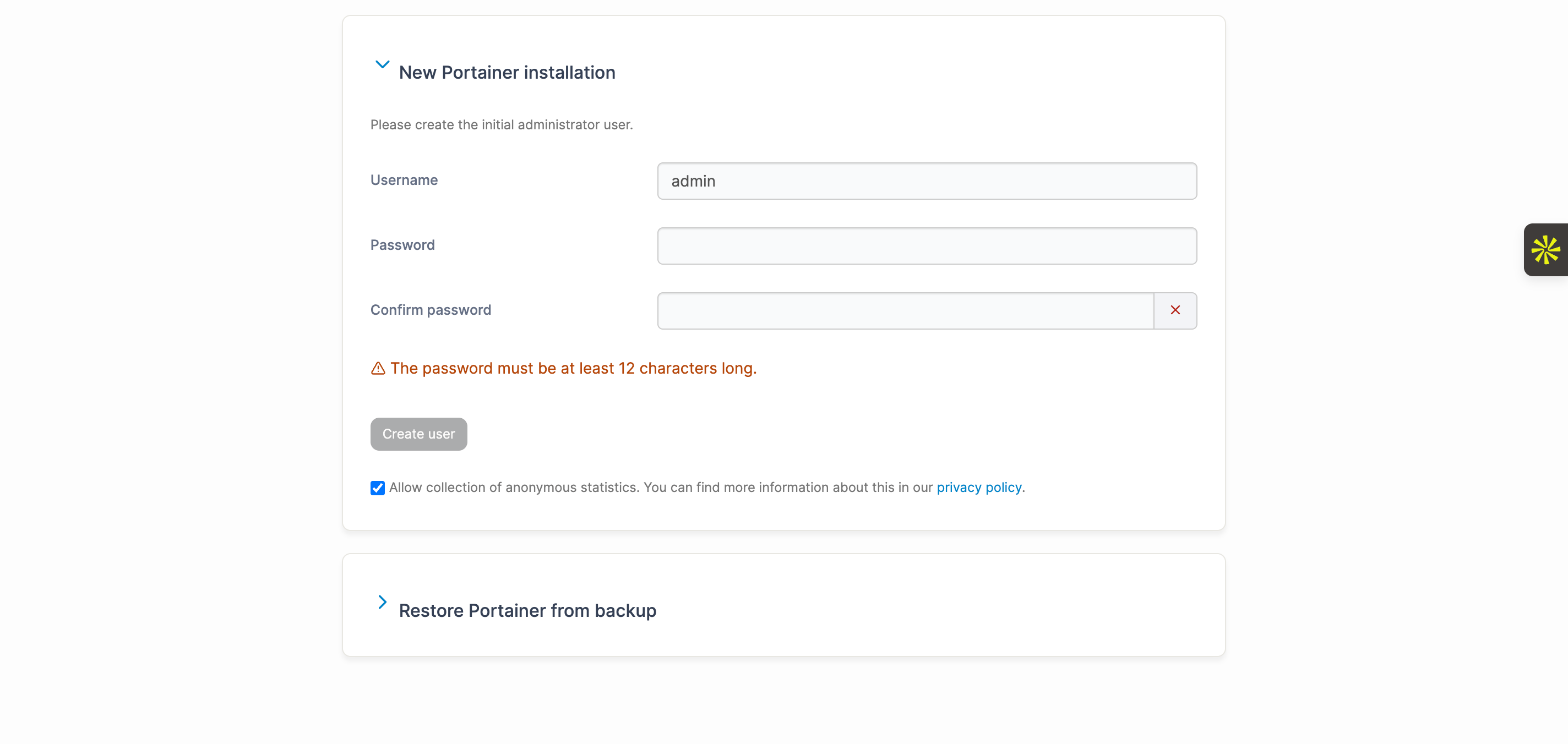
This time, I created the admin account immediately.
##Final Result
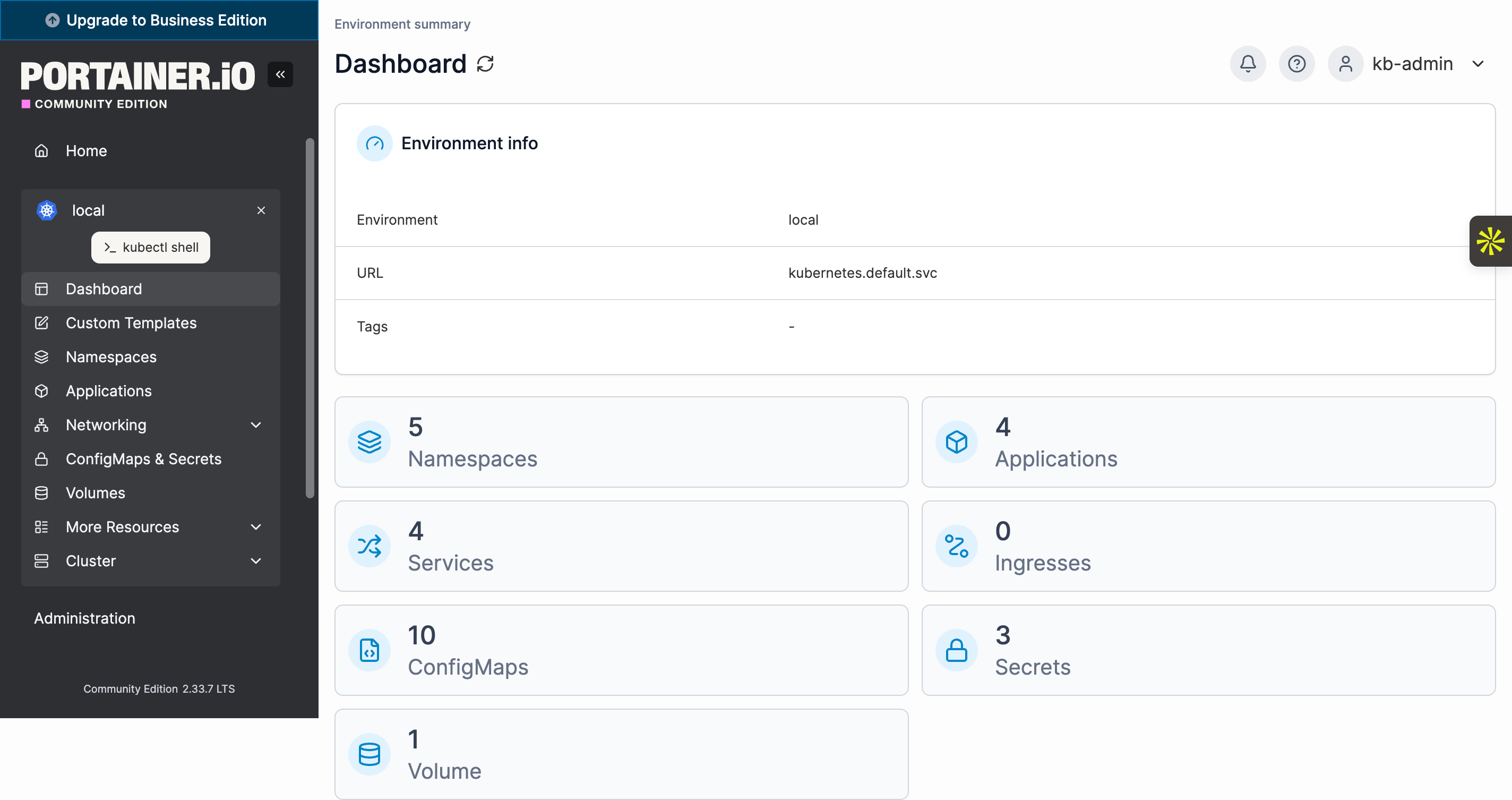
After logging in, Portainer automatically detected my Kubernetes environment. From there, I could:
- View nodes and namespaces
- Inspect pods and logs
- Deploy applications
- Scale workloads
- Manage cluster resources visually
Everything worked out of the box.
##Final Thoughts
Running Kubernetes in a homelab is a great way to learn infrastructure, but tools like Portainer add an important layer of usability.
It provides a clear view of what is happening inside the cluster and makes management easier without removing the flexibility of the command line.
For anyone running Kubernetes at home, especially on virtualized infrastructure, adding a management interface is a worthwhile improvement.