
I've been running a homelab Kubernetes cluster for a while now. It’s a simple two-node k3s setup with Traefik handling ingress and a Cloudflare Tunnel for external access. It’s been a great space to experiment and learn.
But deployment was still a pain.
Recently, I had a frontend app sitting in a GitLab repo, and every time I wanted to deploy, it turned into a small ritual. SSH into the server, pull the latest image, restart containers, and hope everything still worked. It got the job done, but it wasn’t something I trusted or enjoyed.
This post walks through how I moved from that setup to a full GitOps workflow using GitLab CI and ArgoCD. No prior ArgoCD experience, just figuring things out step by step until a simple git push became enough to deploy.
##The Starting Point
Going into this, my setup was pretty straightforward. I had a k3s cluster running on two Ubuntu nodes: one control plane and one worker, both on my local network. Traefik came bundled with k3s, so ingress was already handled. For external access, I was using a Cloudflare Tunnel running via cloudflared pods in a dedicated namespace, routing traffic from *.demolamalomo.xyz into the cluster.
The app itself was a frontend project. A Node.js app that builds into static files and gets served with nginx. The code lived in GitLab, and I was already using GitLab’s container registry to store images from earlier CI builds.
The CI pipeline, however, was doing too much. It built the image, then SSH-ed into the server to stop containers, remove them, pull new images, and restart everything. It worked most of the time, but it was fragile, hard to debug, and rolling back meant doing everything manually again.
##The Options I Considered
Throughout my deployment journey, I explored a couple of options before arriving at ArgoCD.
- Manual build and deploy was basically what I was already doing. Build locally, push the image, run
kubectl apply. The issue with this is that there’s no automation, no audit trail, and plenty of room for error. - GitLab CI/CD handling everything was the next step. The pipeline builds the image, pushes it, and deploys directly to the cluster using
kubectl. This is where a lot of teams start, and honestly, it worked reasonably well for me too. But the CI was doing a lot of work, and it can get really messy with a lot of echoing and sshing commands. For context, below is a section of one of my CI build:
- echo "$ID_RSA_DEV_HOMELAB" > id_rsa_homelab
    - chmod 600 id_rsa_homelab
    - apk update && apk add openssh-client
    - echo "stop existing docker container & remove images"
    - echo "Port $STAGE_SVR_PORT_HOMELAB"
    - echo "User $DEV_SERVER_USER_HOMELAB"
    - echo "Host $STAGE_SVR_IP_HOMELAB"
    - echo "VM $STAGE_VM_IP_HOMELAB"
    - echo "Service $SERVICE_NAME_HOMELAB"
    - ssh -i id_rsa_homelab -p $STAGE_SVR_PORT_HOMELAB -o StrictHostKeyChecking=no $DEV_SERVER_USER_HOMELAB@$DEV_SVR_IP_HOMELAB "docker stop $SERVICE_NAME_HOMELAB || true"
......- GitOps with ArgoCD takes a different approach. CI still builds and pushes images, but it never talks to the cluster directly. Instead, it updates a Git repo that contains the Kubernetes manifests. ArgoCD, running inside the cluster, watches that repo and syncs any changes.The thing I liked most was that I could look at a repository and immediately know what should be running in the cluster.
That was the point where ArgoCD clicked for me. I liked the fact that I could open a repo and know exactly what was deployed. Rollbacks also become much simpler, by just reverting a commit. So I went with ArgoCD.
##Installing ArgoCD
I’d never used ArgoCD before, so this part was new. Thankfully, installation was straightforward:
kubectl create namespace argocd
kubectl apply -n argocd -f https://raw.githubusercontent.com/argoproj/argo-cd/stable/manifests/install.yaml
After a minute or so, everything was running, and I could start exploring the dashboard.
To access the dashboard, I started with a simple port-forward:
kubectl port-forward svc/argocd-server -n argocd 8080:443The default login is admin, and the initial password is stored in a Kubernetes secret:
kubectl -n argocd get secret argocd-initial-admin-secret -o jsonpath="{.data.password}" | base64 -dI also installed the ArgoCD CLI, which made it easier to create applications and debug sync issues without constantly switching to the browser.
Later on, I exposed ArgoCD through Traefik and my Cloudflare Tunnel so I could access it remotely, but the port-forward was more than enough to get started.
##Understanding the Two-Repo Pattern
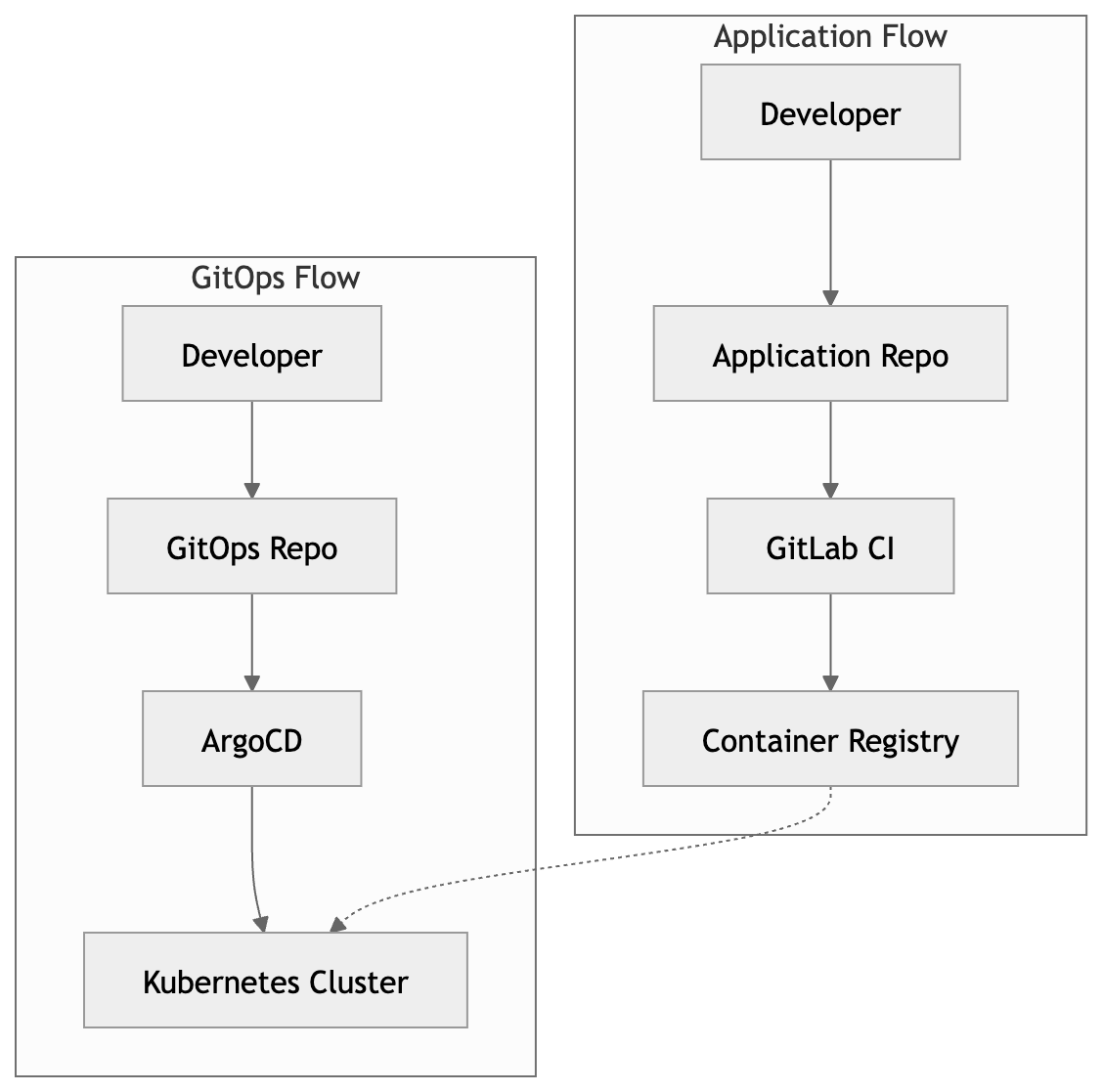
One thing that took me a while to wrap my head around was the idea of maintaining two repositories. At first it felt unnecessary. Why split things up when everything belongs to the same application?
But after working with it for a bit, the separation started to make sense.
The application repo is where development happens. Code changes, Dockerfile, and CI configuration (.gitlab-ci.yml).
The GitOps repo is different. Its only job is to describe what's running in the cluster. Deployments, Services, and Ingress definitions. ArgoCD watches this repo and syncs the cluster whenever something changes.
The benefit became obvious pretty quickly. My application repo changes all the time with feature work, bug fixes, and random experiments, while the GitOps repo changes much less often because it only reflects what should be running in the cluster.
My GitOps repo (homelab-gitops) ended up looking like this:
homelab-gitops/
  clohea-admin/   # my application folder
    deployment.yaml
    service.yaml
ingress.yaml##Setting up the GitLab CI Pipeline
My existing .gitlab-ci.yml was doing too much. The new version only needed to do two things: build the image and update the GitOps repo.
The build stage pushes two tags:
:latestfor general use- a commit hash tag like
:a1b2c3d, which is what goes into the manifests
That commit-specific tag is important because it gives ArgoCD a concrete change to detect.
docker-build-homelab-dev:
    image: docker:latest
    stage: build
    services:
        - docker:dind
    before_script:
        - echo $CI_JOB_TOKEN | docker login -u "$CI_REGISTRY_USER" --password-stdin $CI_REGISTRY
    script:
        - echo "$DEV_ENV" > $CI_PROJECT_DIR/.env
        - docker build -f ./Dockerfile --pull -t "$CI_REGISTRY_IMAGE:latest" -t "$CI_REGISTRY_IMAGE:$CI_COMMIT_SHORT_SHA" .
        - docker push "$CI_REGISTRY_IMAGE:latest"
        - docker push "$CI_REGISTRY_IMAGE:$CI_COMMIT_SHORT_SHA"
    only:
        - homelab-dev
The deploy stage updates the GitOps repo:
update-manifest:
    stage: deploy
    image: alpine:latest
    before_script:
        - apk add --no-cache git sed
        - git config --global user.email "ci@gitlab.com"
        - git config --global user.name "GitLab CI"
    script:
        - git clone https://deploy-token:${GITOPS_TOKEN}@gitlab.com/clohea-fe/homelab-gitops.git
        - cd homelab-gitops
        - 'sed -i "s|image: .*|image: ${CI_REGISTRY_IMAGE}:${CI_COMMIT_SHORT_SHA}|" clohea-admin/deployment.yaml'
        - git add .
        - git diff --cached --quiet && echo "No changes" || git commit -m "Update frontend image to $CI_COMMIT_SHORT_SHA" && git push
    only:
        - homelab-dev
One thing that tripped me up: the sed command needs to use double quotes so that the shell expands the CI variables. My first attempt used single quotes, which meant $CI_REGISTRY_IMAGE was treated as literal text. The sed command found nothing to replace, git commit found nothing to commit, and the pipeline failed with exit code 1. A small thing, but the kind of mistake that costs you 30 minutes of staring at logs.
A Note on the GITOPS_TOKEN
The update-manifest job needs write access to the GitOps repo. I created a Project Access Token in the GitOps repo (Settings > Access Tokens) with write_repository scope, then stored it as a CI/CD variable called GITOPS_TOKEN in the app repo (Settings > CI/CD > Variables), with the "Mask variable" option checked so it doesn't leak into logs.
I could also have used a Personal Access Token, which would work across all my repositories, but a Project Access Token scoped to just the GitOps repo is cleaner from a security standpoint.
##The Kubernetes Manifests
The GitOps repo itself stayed pretty simple. For this application, I only needed three manifests:
- A Deployment
- A Service
- An Ingress
Nothing fancy. Just enough to get the application running and exposed through Traefik.
apiVersion: apps/v1
kind: Deployment
metadata:
    name: webapp-service
    namespace: frontend
spec:
    replicas: 2
    selector:
        matchLabels:
            app: webapp-service
    template:
        metadata:
            labels:
                app: webapp-service
        spec:
            imagePullSecrets:
                - name: gitlab-registry-cred
            containers:
                - name: webapp-service
                  image: registry.gitlab.com/clohea-fe/clohea-admin/webapp-service:INITIAL_TAG
                  ports:
                      - containerPort: 3000
Since the registry is private, I created an image pull secret:
kubectl create secret docker-registry gitlab-registry-cred \
  --namespace frontend \
  --docker-server=registry.gitlab.com \
  --docker-username=<deploy-token-username> \
  --docker-password=<deploy-token-value>
The service routes traffic internally:
apiVersion: v1
kind: Service
metadata:
    name: webapp-service
    namespace: frontend
spec:
    selector:
        app: webapp-service
    ports:
        - port: 80
          targetPort: 3000
And the ingress exposes it via Traefik:
apiVersion: networking.k8s.io/v1
kind: Ingress
metadata:
    name: webapp-service
    namespace: frontend
spec:
    ingressClassName: traefik
    rules:
        - host: admin-portal.demolamalomo.xyz
          http:
              paths:
                  - path: /
                    pathType: Prefix
                    backend:
                        service:
                            name: webapp-service
                            port:
number: 80##Connecting ArgoCD to the GitOps Repo
For ArgoCD to watch the GitOps repo, it needs credentials since it's a private GitLab repo. I created a deploy token in the GitOps repo with read_repository scope, then added the repo to ArgoCD using the UI.
Settings > Repositories > + CONNECT REPO
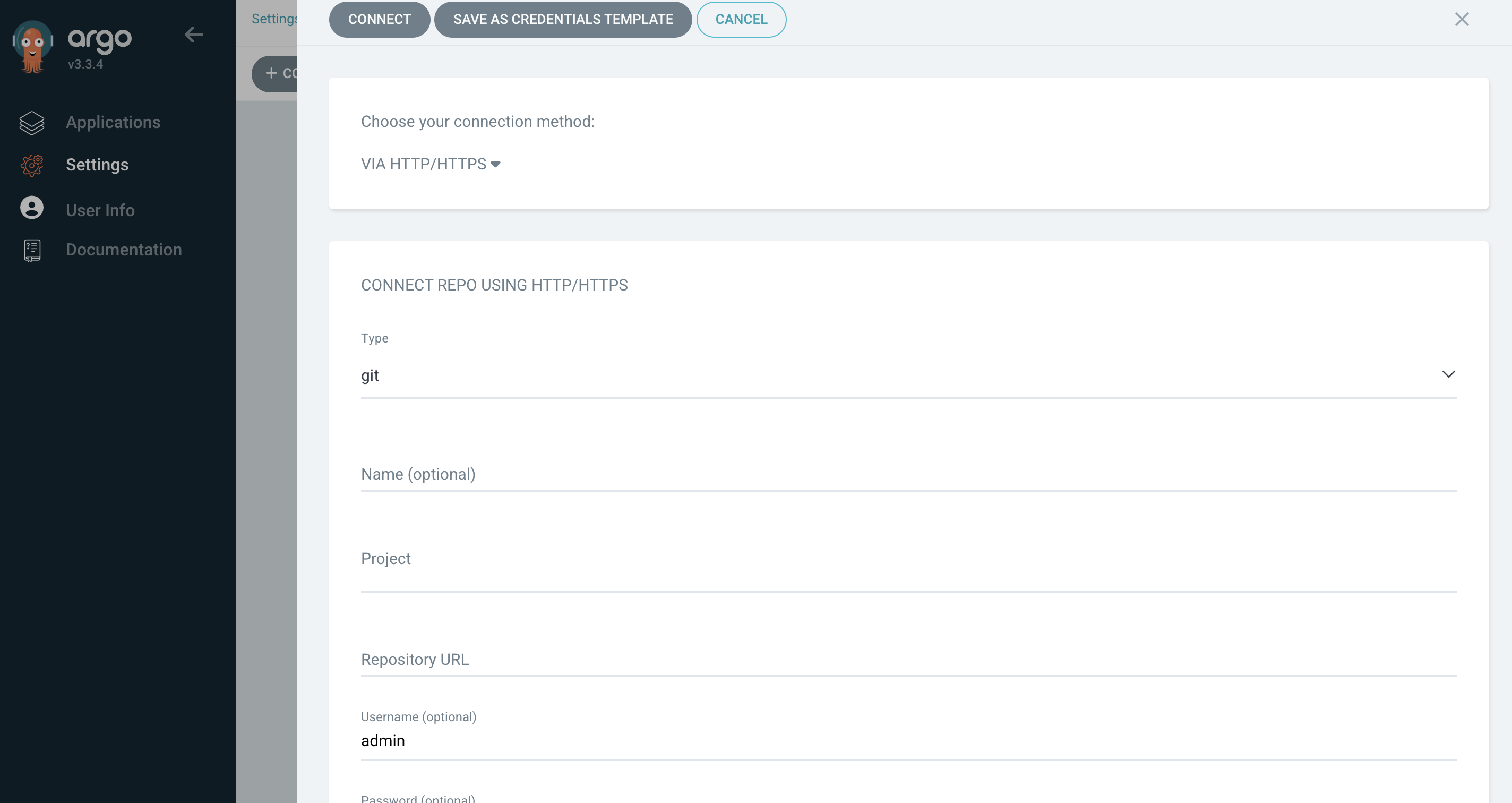
Another option to do this is to use the CLI:
argocd repo add https://gitlab.com/clohea-fe/homelab-gitops.git \
  --username <deploy-token-username> \
  --password <deploy-token-value>
Then I created the application by entering the repository URL, the path to the application folder in the GitOps repo, and a few other required settings.
Application > + NEW APP
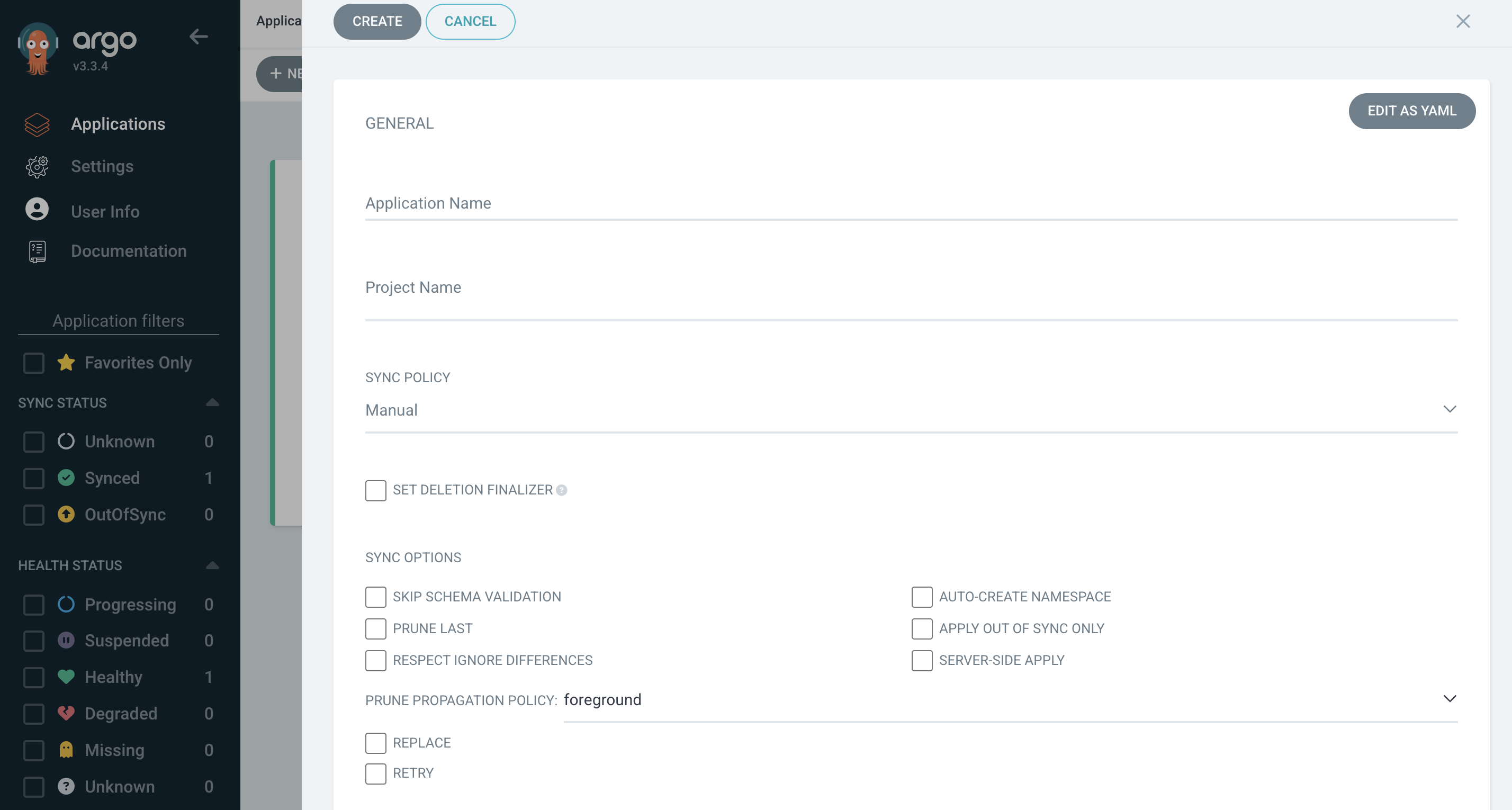
I can also use the CLI by running the command below
argocd app create frontend \
  --repo https://gitlab.com/clohea-fe/homelab-gitops.git \
  --path clohea-admin \
  --dest-server https://kubernetes.default.svc \
  --dest-namespace frontend \
  --sync-policy automated \
  --auto-prune \
  --self-heal
Quick breakdown of the flags:
--sync-policy automated: syncs on every commit--auto-prune: removes deleted resources--self-heal: reverts manual cluster changes
##The Debugging Marathon
If I'm being honest, the setup didn't just work on the first try. Here's a condensed version of the issues I hit, because I think they're genuinely useful for anyone doing this for the first time.
Image pull errors. The first deployment failed with a 403 Forbidden because Kubernetes couldn't authenticate with GitLab's private container registry. The fix was creating the docker-registry secret and adding imagePullSecrets to the deployment manifest. Then it failed again with not found — the image tag referenced in the manifest didn't exist in the registry because my build job hadn't pushed a commit-hash tag yet.
Name mismatches. My ingress was referencing a service called frontend, but the actual service was named webapp-service. A simple typo that resulted in a 502 from Traefik. kubectl describe ingress made this obvious once I thought to look.
Port mismatch. This one was subtle. The deployment had containerPort: 80 and the service was targeting port 80, but nginx inside the container was actually listening on port 3000. The Docker image had a custom nginx config that bound to 3000 instead of the default 80. Running kubectl exec and checking netstat -tlnp inside the pod revealed the mismatch immediately.
##The End Result
Once everything was wired up and the bugs were resolved, the flow became exactly what I wanted:
- I push code to the
homelab-devbranch. - GitLab CI builds the Docker image and pushes it to the registry with both a
:latestand a commit-hash tag. - The
update-manifestjob clones the GitOps repo, updates the image tag in the deployment manifest, and pushes. - ArgoCD detects the new commit within seconds.
- ArgoCD syncs the manifests to the cluster, Kubernetes pulls the new image, and the app is live.
The ArgoCD dashboard shows the full picture. Sync status, pod health, the Git commit that triggered the deployment. If something goes wrong, I can see exactly which commit caused it and revert.
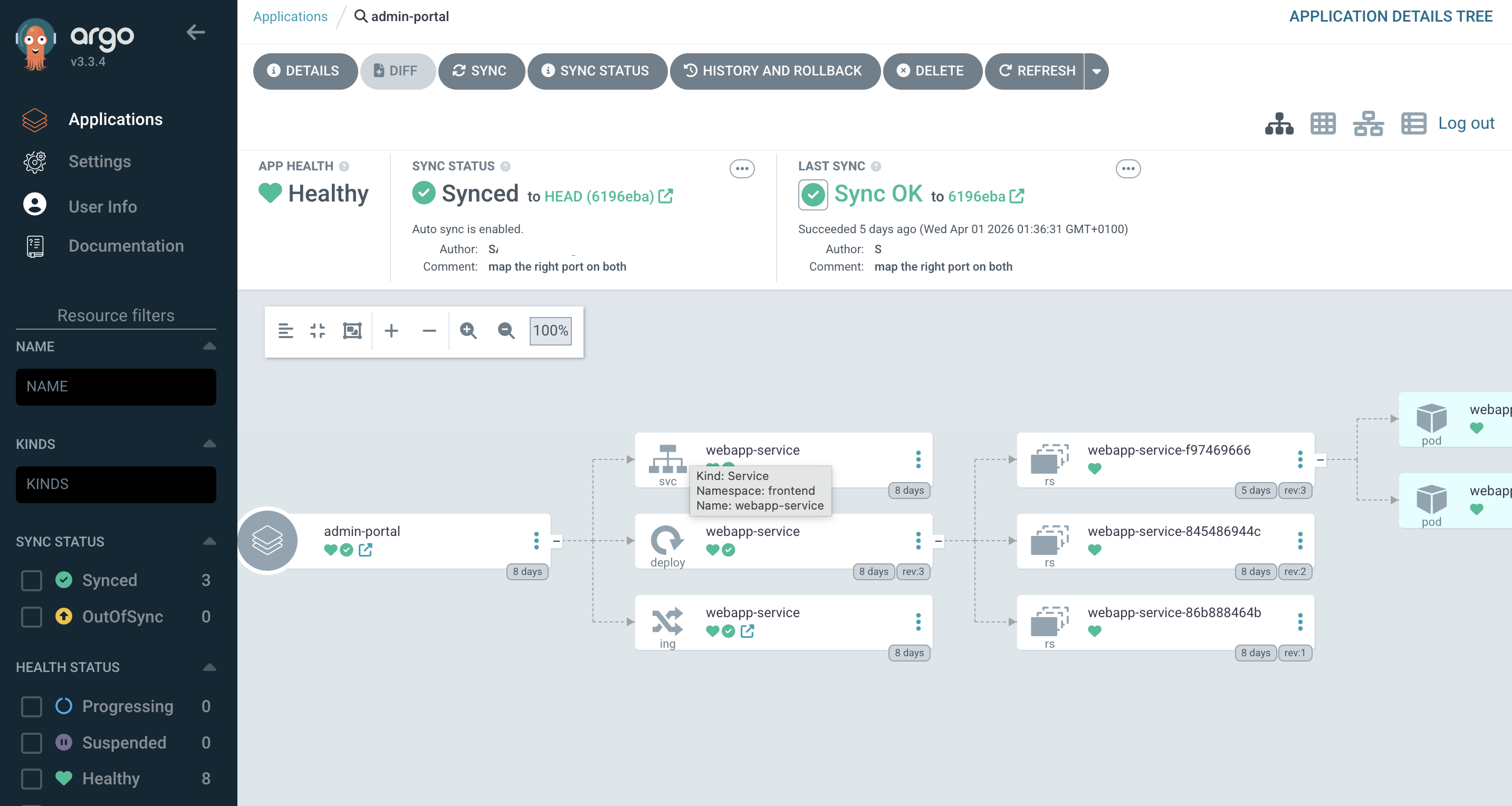
The entire deployment chain is now traceable through Git commits. No more SSH-ing into servers or chained server commands. Just git push, and everything takes care of itself.